
Schema can give your website’s SEO (search engine optimisation) a boost, by providing additional programmed data to search engines as well as making use of Google knowledge panels (VIP).
You can add this markup to your site by using your Yoast SEO plugin (the free version is fine) it’s just about finding the right bit and writing the content to begin with. Though I’ve got a few steps in this post to help you out.
What’s Schema Markup?
Schema markup is a kind of metadata (referred to as microdata) that’s added to your site to give search engines more information about what’s going on. In the past, we’ve used HTML tags to provide this kind of information to search engines.
Things like title tags, meta descriptions, and meta keywords (no longer relevant / that’s right I understood the assignment…) have all been useful to tell search engines what a site is about. Schema markup is added to the HTML within the pages and posts on your site.
But that doesn’t give search engines all the information they need to be able to fully understand what your site is about (or display in the Google knowledge panel) and who it would appeal to. And that’s where adding Schema markup to WordPress via Yoast comes in.
Schema markup adds an extra layer of data to your content. It tells search engines whether this is about an organisation / business, a person, a place, or even a film.
This means that when people are searching for those things, they’re more likely to get an accurate result. It makes it more likely not only that your pages will be found in search results, but also that you’ll get accurate knowledge panels in Google and boost your search rankings. Your bounce rate will also go down as people are in the right place at the right time.
There are also benefits for location dependent SEO. You can use Schema to tell search engines where your website is based or where the business / service it represents is based. If people are looking for a specific business type in your area, you’ll get higher search engine rankings.
Schema markup also helps with sitelinks. This is when your search engine listing doesn’t just include your homepage, but extra information such as content from your site or a list of subpages within your site. Schema markup provides information that helps search engines pull out that information and add it to its SERPs. These rich search results proved to increase average click-through rates.
Schema markup can also help you link your website to your social media accounts. One of the items of microdata you can include in your site is a link to various social media accounts including Facebook. This will help search engines to use the two sources of information together to provide people with the results they need when they’re searching for something about you.
Using the Schema Data Types
Let’s say your site represents a restaurant. To tell search engines this, you should use Schema markup, specifically the Organisation and the Restaurant data types, to add this information to your pages.
On top of these, you might also want a location page and pages for events that you’ve got coming up at your restaurant, in which case you would use the Event data type to give search engines more information about that (Events Calendar).
How to Add Schema Markup to Your WordPress Site via the FREE Yoast Plugin
If you’re already using the Yoast plugin for SEO on your WordPress site, the good news is that you can use this plugin to add Schema markup. It doesn’t add as much markup as some of the premium plugins listed above, and isn’t dedicated to Schema markup, but it means that you don’t have to install and configure an additional plugin.
When you first install Yoast, you will be asked for information such as the entity that the website represents, and social media links. This is all part of adding Schema markup to your WordPress site.
First up, you’ll be asked what type of organisation the site represents.
If you need to update the type of entity your website represents at any time, go to SEO > Search Appearance and select the General tab. Scroll down to the Knowledge Graph & Schema.org section and fill in the correct details there.
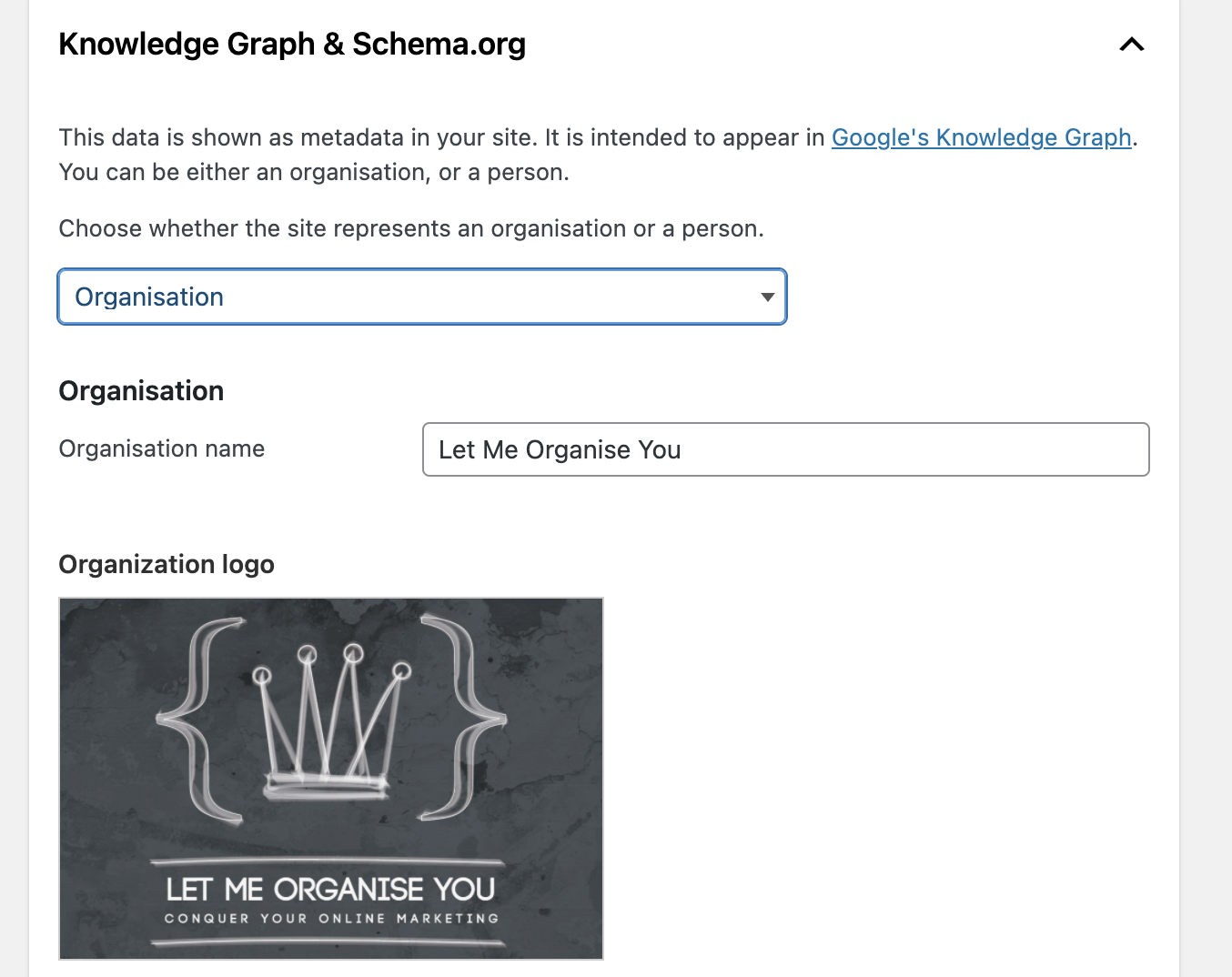
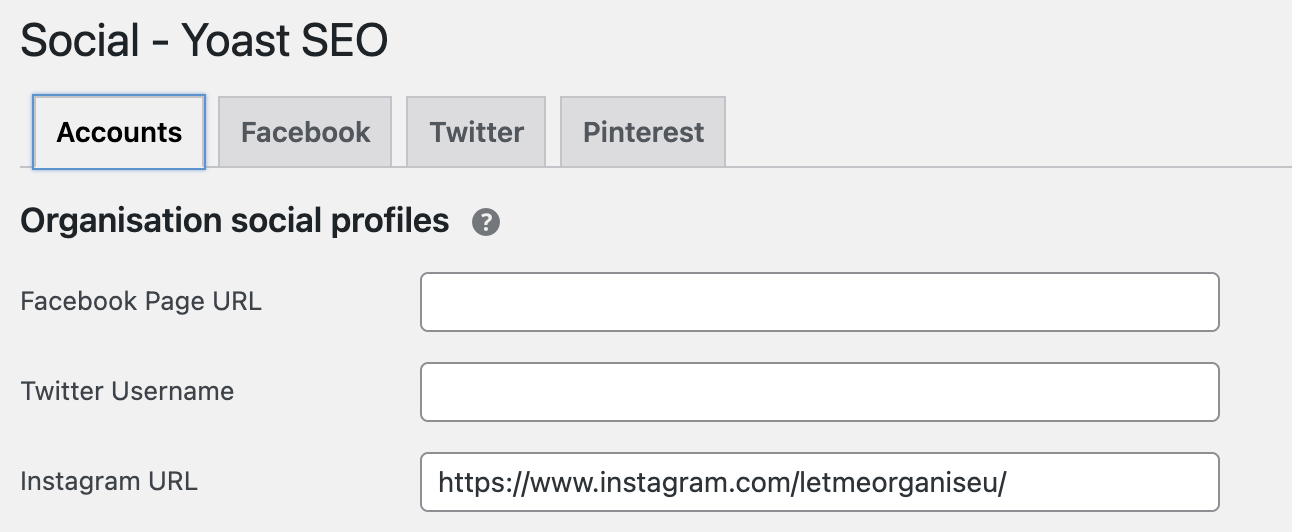
Once you’ve set up the website type, Yoast will add data types and Schema markup to your WordPress site automatically.
Examples of how Yoast adds Schema markup to your WordPress site include:
Full entity graphs, based on the content types in your site and the settings for the site type. This is the list of entities and content types in your site, as displayed when you test in the Google Structured Data Testing Tool. Marking up single posts and pages with Article and Author data types. Marking up archive pages with the appropriate data type, e.g. CollectionPage for taxonomy and date archives and ProfilePage for author archives.
Marking up search results as SearchResultsPage.
Adding Schema markup to your WordPress site will give you an SEO boost because it will tell search engines more about your site and the context it exists in. Displaying relevant information directly on a search engine’s listing page can be the difference between making a sale or not.
Most sites aren’t using Schema markup yet, so if you spend a short amount of time adding this, you’ll instantly be ahead of your competitors!
If you like what you have read, or are abit confused, or now need some tea and cake – Then get in touch! Use the Contact Me form on this website and I’ll get right back to you!